
How to update drivers on your PC

If you’ve ever built a new PC or upgraded some of its hardware, odds are that you also had to install the proper drivers to keep the machine running smoothly. Drivers are essential pieces of software that keep your operating system and its hardware working together. Unfortunately, this means they can also cause problems if they’re out of date or incompatible with some of your other PC components or software.
In this PC drivers guide, we’ll teach you everything you need to know about drivers. We’ll start by explaining what drivers are and then show you the many ways to keep yours updated. We’ll also explain some of the common problems you may run into when trying to keep drivers up-to-date and your PC running smoothly, and we’ll help you troubleshoot.
What are drivers on a PC?
Drivers are software for your PC’s hardware. They act as intermediaries between physical devices like GPUs and operating systems like Windows. Drivers translate commands and ensure that everything works together smoothly. If you don’t have the correct drivers, your hardware may function poorly (or not at all) because the operating system won’t know how to communicate with it.
What do drivers do and why are they important?
Keeping your drivers up-to-date can help your PC run smoothly by improving compatibility, performance, and stability.
If your operating system is the boss of your PC, then your drivers are its employees. Good employees act with a degree of independence, which frees up the boss’s schedule. For example, when you print something, the operating system hands the task over to the printer driver, which translates your document into instructions that the printer understands. The boss hands off the assignment, trusting employees to handle the grunt work. No micromanaging required.
Keeping your drivers updated also can improve performance, fixing bugs, coding errors, and other technical hiccups that driver updates regularly patch out. Updating PC drivers can make things run smoother and, in some cases, even improve compatibility and performance of hardware and software.
Signs you need driver upgrades
If you’re having technical problems with your PC, updating your drivers may be a good place to start your troubleshooting. Here are a few telltale signs that your drivers may be out of date.
- If your hardware isn’t functioning at all
- If you’re experiencing system slowdown
- If your PC is freezing up or crashing
- If certain programs are freezing up when you try to run them
- If you get the dreaded Windows "Blue Screen of Death" or BSOD
- If you’re receiving system error messages when trying to use certain hardware
- If you’re experiencing visual glitches
How to tell if PC drivers are up to date
If you’re not sure that you have the latest drivers installed, there are a few easy ways to check.
One way is to use any proprietary software you may have installed. Manufacturers of components like GPUs, keyboards, mice, and motherboards often write software that can check for driver updates and ensure that things are running properly. In many cases, you can even tell the software to check for updates and install the latest drivers automatically.
On a PC, the built-in Windows Update feature can also find, download, and install certain recommended drivers.
You can also use Windows Device Manager to see the current driver information for all connected devices and hardware. Right-click on a device and click Properties in the menu that appears. The Driver tab in the window that opens gives you access to its details.
How to update drivers on PC
To update your PC drivers, you can typically use the aforementioned proprietary software. For example, GPU manufacturers AMD and Nvidia both have software specifically designed to find and install drivers for the hardware in your PC.
You can also update drivers using Windows’ Device Manager, on the same Driver tab that we mentioned above.
Another option is to check the device manufacturer’s website, where they often allow users to download drivers, both old and new.
Update drivers using Windows
If you want to use Windows to install your drivers, there are two easy ways to do it.
Using Windows Update
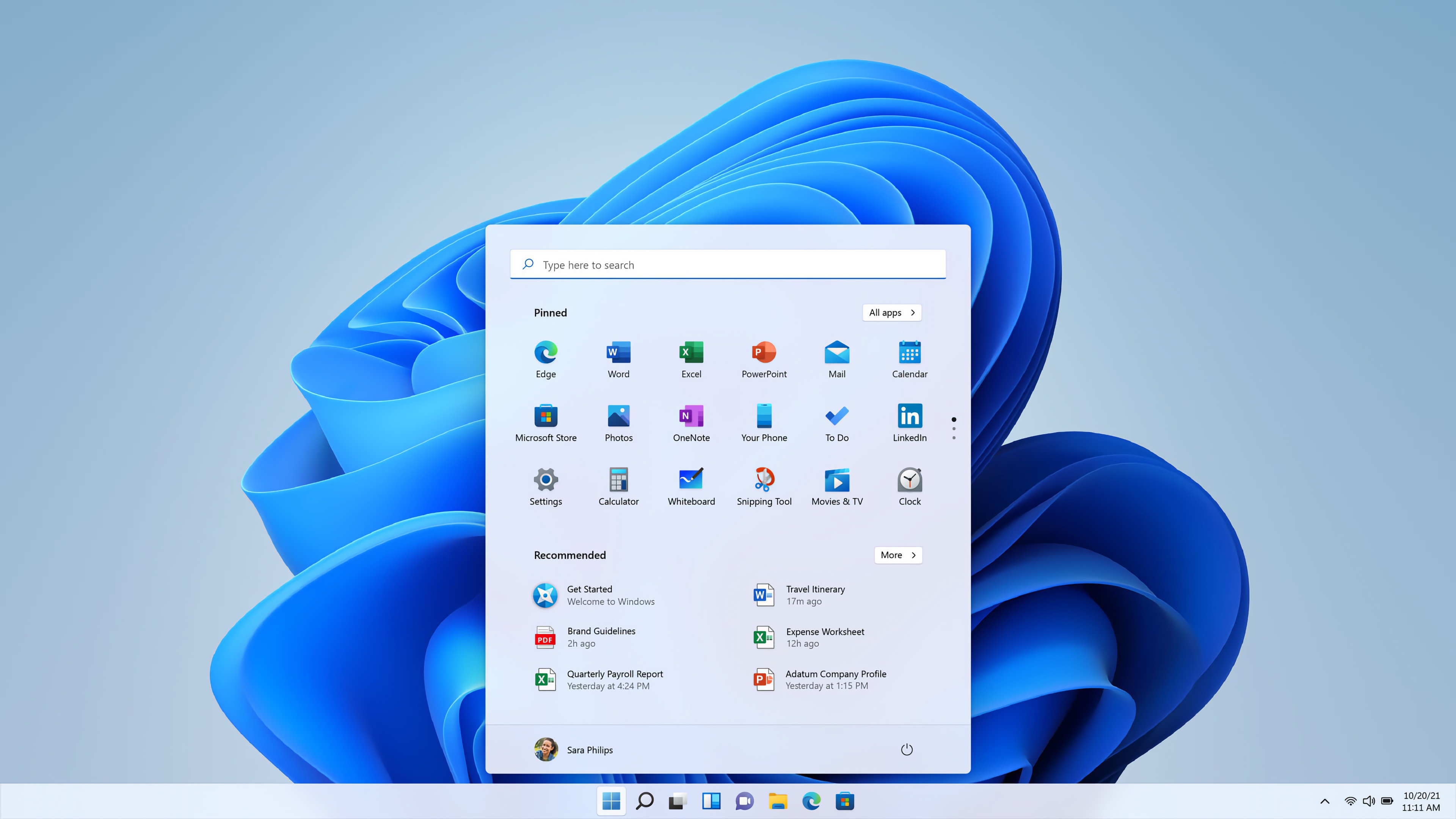
- Use the keyboard shortcut Win + I, or search the Start Menu for Settings and select the result.
- Click Update & Security.
- Click Windows Update.
- Click Check for updates.
- After Windows is done checking for updates, click Download and install.
Update drivers using Device Manager
- Use the keyboard shortcut Win + X, or search the Start Menu for Device Manager and select the result.
- Select the device category that contains your hardware (cameras, keyboards, monitors, et cetera).
- Right-click the device you wish to update, and click Update driver on the menu that appears.
- In the new window that opens, you can tell your PC to search for driver updates.
Manually update drivers
If you’d rather manually download and update your drivers, the process is similar.
Using Windows Update
- Use the keyboard shortcut Win + I, or search the Start Menu for Windows Update and select the result.
- Click Check for updates.
- Once Windows is done checking for updates, click Advanced options.
- Click Optional updates.
- Select the drivers you wish to install, and then click the Download and install button.
Update drivers using Device Manager
- Use the keyboard shortcut Win + X, or search the Start Menu for Device Manager and select the result.
- Select the device category that contains your hardware (cameras, keyboards, monitors, etc.).
- Right-click on the device you wish to update, and select Update driver.
- If you’ve already downloaded a new driver, select Browse my computer for drivers.
- Find the file, and select it to install your driver.
Download drivers from manufacturer sites
The official website of the company that makes your device typically has drivers available for download. Make sure that you only download software from trusted sites. Ensure that it’s the company’s official site before attempting to install any new drivers.
- Determine the make and model of your device or the name of the software that needs a driver or an update. You can do this by hitting Win + X, or searching the Start Menu for Device Manager and clicking on the result.
- In Device Manager, select the device category that contains your hardware (cameras, keyboards, monitors, et cetera.).
- Right-click the device that you wish to update with a new driver.
- In the menu that opens, select Properties.
- In the window that opens, click on the Details tab.
- In the Property drop-down menu, highlight Hardware ID and make a note of it.
- Search for the hardware ID online, or use the company’s website to find the correct driver.
- Download the correct driver. (Your Downloads folder is a great place to store this file temporarily.)
- Find the downloaded driver on your computer.
- Double click on the driver’s file to install or update your driver.
Use an automatic driver update tool
A number of third-party software tools can help keep your system up to date with the latest drivers. These programs scan your system for drivers and handle all your updates for you.
Keep in mind they’re not associated with hardware manufacturers. There’s always a risk that you could download malware when choosing an automatic driver update tool. Spend a few minutes doing a little internet research to determine whether the program you’re considering and the site that you’d download it from are legitimate.
Many users are happy to write about their experiences, and you can make an informed decision about the software’s reputation using freely available knowledge.
Common issues with driver updates
Occasionally, you may run into a problem when installing and updating drivers. The reasons are varied, but there are a number of common issues that you should know about. We’ll help you understand and troubleshoot those in the next sections.
Installation failures and permission issues
Some of the more common problems you may run into when installing new drivers include the following:
- You may have corrupted downloads.
- The wrong driver was downloaded.
- There’s not enough disc space to install the driver.
- The software has permission issues.
Fortunately, there are a few things you can try if you run into any of these problems. If you find yourself wary about any part below, a simple internet search can take you to Microsoft’s free online support site, which will walk you through the necessary steps to, for example, free up drive space.
- Double-check that you have the proper drivers downloaded.
- Redownload the driver, if you suspect that the file is corrupted. (See the section above called “Download drivers from manufacturer sites.”)
- Free up space on your drive by deleting old or unnecessary files. Windows has built-in tools to help, and Microsoft’s support site will walk you through their use.
- Try installing the drivers as an administrator.
- Try to install the drivers in Safe Mode. Microsoft’s support site will show you how.
- Check your security and antivirus protection settings to make sure they’re not preventing the software from being installed.
Conflicts with existing software and compatibility issues
Sometimes, even if you’ve kept your PC running smoothly and all your drivers are up-to-date, you can still run into compatibility issues. PCs are complicated machines, and new patches and drivers can create unexpected conflicts with other components. Here are a few common scenarios for you to be aware of.
- Your drivers have become corrupted.
- Two or more drivers are incompatible with each other.
- Windows updates overrode your custom driver settings.
- Third-party software is causing interference.
You should always ensure that any hardware you purchase is compatible with your current PC. For example, make sure your new graphics card (GPU) is compatible with your motherboard.
If you run into any of these or similar problems, here are a few troubleshooting steps that may get your PC back on track. As we wrote above, a simple internet search can take you to Microsoft’s free online support site, which will walk you through the necessary steps to, for example, search for incompatible software or start your PC in Clean Boot mode.
- Delete any outdated or corrupted drivers.
- Delete any incompatible software.
- Try running your PC in Clean Boot Mode.
- Verify that your drivers are compatible with your operating system.
- Double-check for any updates.
- Check for error messages, and research what you find.
- Make sure your PC meets the minimum system requirements for the software and hardware.
- Try running your software in Compatibility Mode.
- Check online forums for help or guides.
- Contact the hardware manufacturer for assistance.
Explore more from Epic Games
Now that you understand drivers, how they work, and what you can do to keep them up to date and your PC running smoothly, it’s time to learn more about keeping it in tip-top shape. You can learn more about maintaining your gaming PC and keeping it healthy right here at the Epic Games Store. We have tons of articles that will give you more information and insights on PC hardware and maintenance, as well as games to play on your PC. Be sure to give them a look.