Fortnite on PC: Best settings for competitive play in 2026
In competitive Fortnite, your PC settings augment your skills—and dialing in the optimal settings can give you the edge.
Hardware tends to make every PC a bit different, but Fortnite has deep customization built in, so you can balance raw performance against visual clarity. Think about it like this: features like ray tracing are great for making the game extremely pretty, but they’re computationally expensive and can be counterproductive to high levels of performance like frames-per-second (FPS) and minimal input lag.
In this story, we’ll help you get the most out of your hardware for high FPS, minimal input delay, and optimized graphics for clarity without sacrificing performance. We’ll also explain how to customize your controls for maximum efficiency and speed.
Best competitive Fortnite video settings
Adjusting your video settings for a competitive play is all about prioritizing performance. Here’s how to do that in Fortnite’s settings.
From the main menu, hit Esc, click the gear icon, and navigate to the Video settings. We’ll pick settings that prioritize performance section by section, top to bottom.
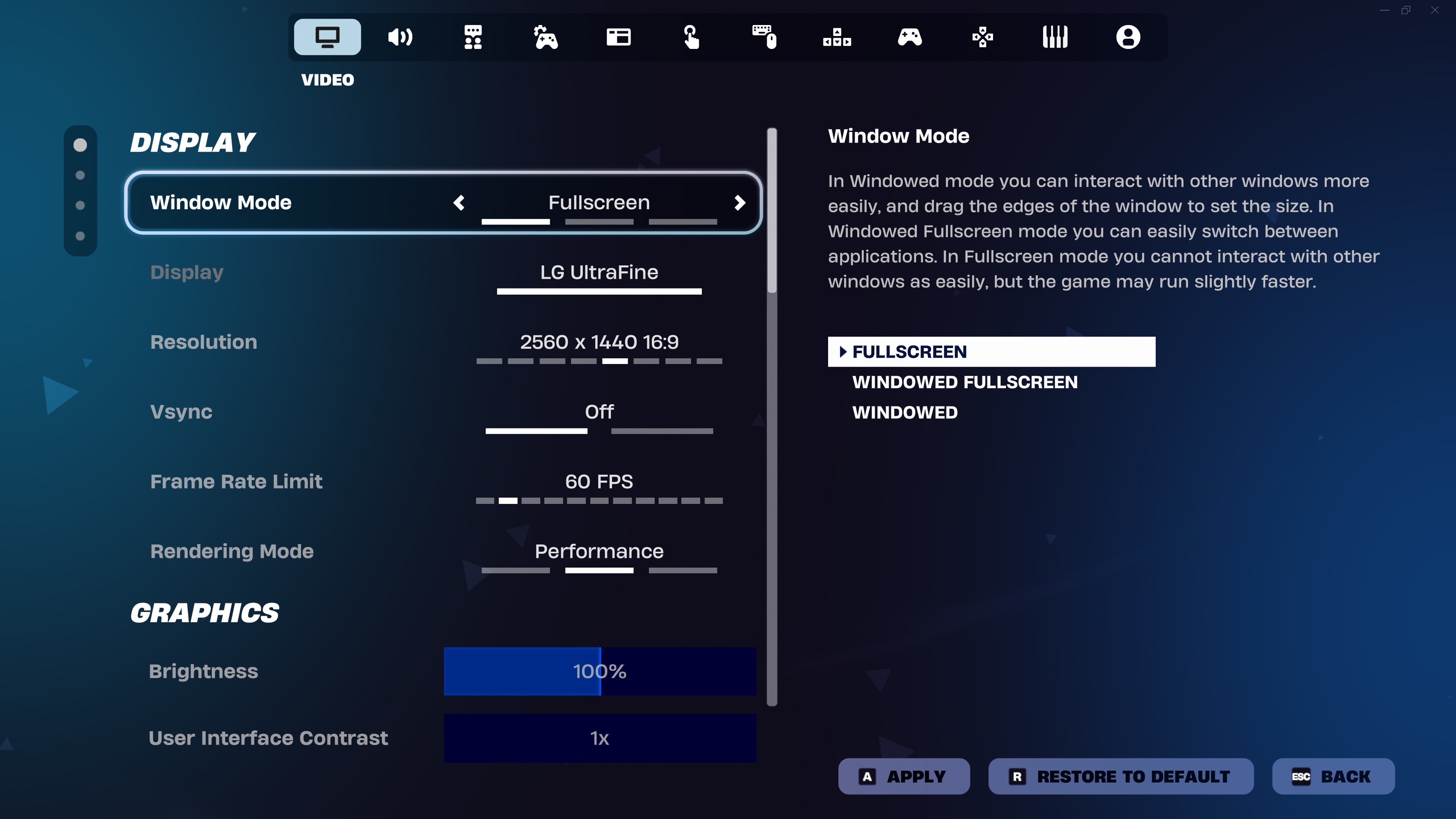
Display
- Window Mode > Fullscreen to minimize input lag. Let Fortnite be your PC’s focus, not just one among many standard windows.
- Under Resolution, select your monitor’s default, though it’s also worth noting that many competitive Fortnite players run at 1920x1080 resolution.
- Vsync > Off to minimize input lag. Pair it with a Freesync (AMD) or G-Sync (NVIDIA) monitor to prevent screen tearing with variable refresh rates.
- Rendering Mode > Performance. These settings use DirectX 12 and disable “most rendering features to reduce memory usage and lighten the load on CPU and GPU.” Just as the name implies, it’s designed to optimize for Fortnite’s performance.
- Frame Rate Limit > Unlimited. Let the game deliver as many frames as possible. But if you see screen tearing, match it to your monitor’s default refresh rate.
Graphics Quality (Performance Mode)
- View Distance > Near. Focus on rendering environmental objects in your immediate surroundings. That’s where the action is. Even better: Players remain clear and visible, even when this is tuned to Near.
- (Minimum) 3D Resolution > 100%. This controls the resolution at which Fortnite renders 3D objects. If you’re not getting the FPS performance that you want, consider decreasing this by 10% until you achieve the performance you’re looking for.
- Textures > Low. We’re aiming for performance, not beauty. And Fortnite still looks great even at low settings!
- Meshes > Low. At this setting, the game renders objects with less detail, freeing up performance.
Advanced Graphics
- Show FPS > Enabled. This allows you to see your real-time performance. It’s also helpful for comparing the game’s performance as you tweak settings.
- NVIDIA Reflex Low Latency > On +Boost. This is explicitly designed to reduce GPU latency, provided that you have an NVIDIA GPU.
Audio
Most of Fortnite’s audio settings are about personal preference, but two stand out.
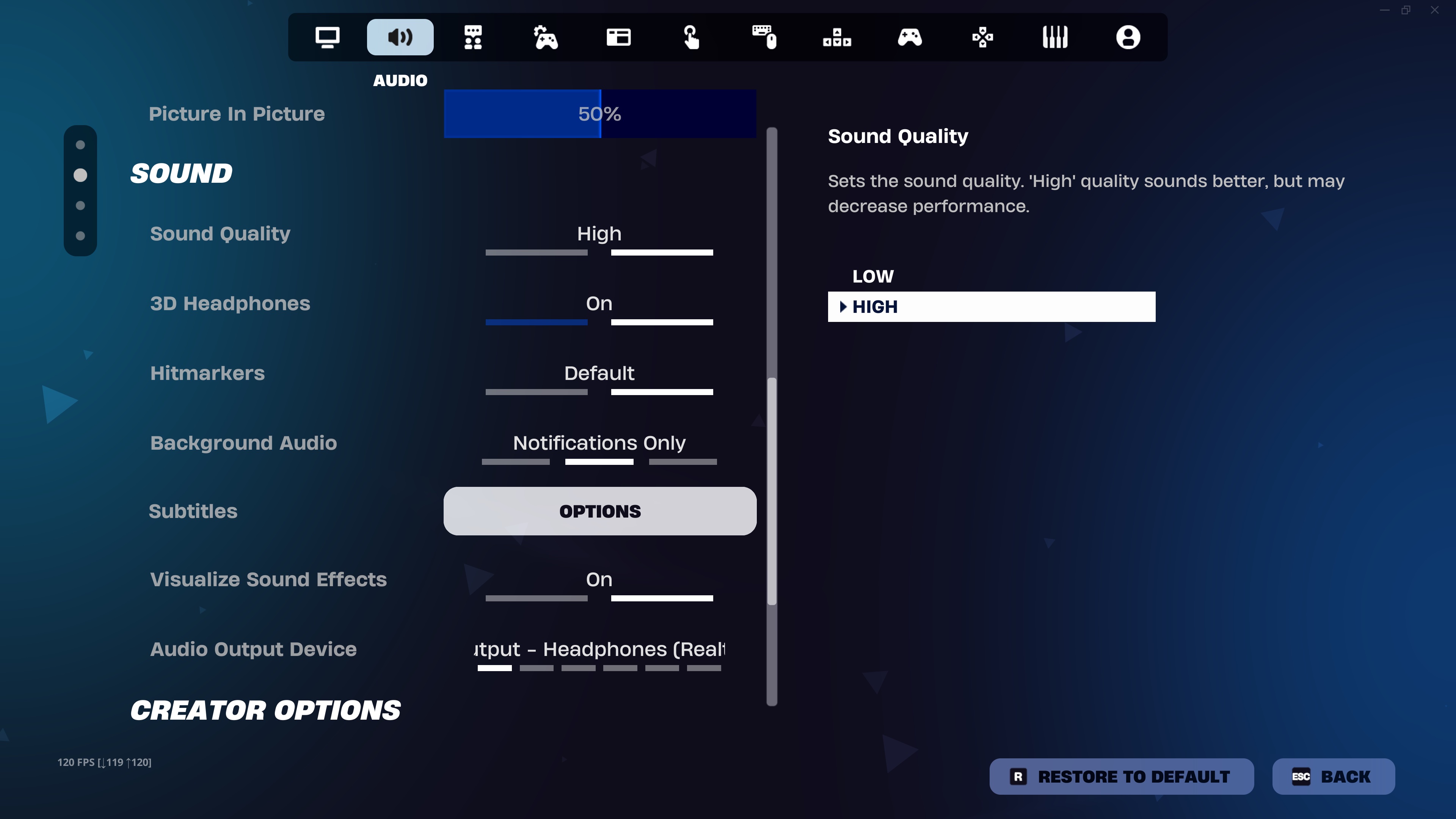
Sound
- 3D Headphones > On. Binaural audio produces 3D sound in your headphones, mimicking sitting in the middle of several real-world surround speakers. Use the technology built into Fortnite, not any third-party software running in the background.
- Visualize Sound Effects > On. With this setting, you’ll see the direction of certain Fortnite sounds on a radial indicator. Knowing where loud things are happening in relation to where you are can give you an advantage.
Best competitive control tweaks
Competitive Fortnite players are mechanically skilled, and they also tend to customize their controls to keep common actions within easy reach.
The best control chances for competitive Fortnite play tend to minimize hand and finger movements, so they bind common controls to mouse buttons and the keys around WASD on your keyboard.
Here are a few tweaks to consider for a competitive advantage.
- Bind building commands to your mouse and keyboard. Make wall, floor, stairs, and roof structures a key press away. You can make these changes in the Keyboard Controls tab.
- Enable Simple Build, which streamlines building and gives you immediate access to builds. Look up or down to build stairs with your primary input. Look forward to build walls with your secondary input, which means you can defend yourself with a single button or key press. You’ll find it in Game > Building.
- Enable Simple Edit. With this toggled on, you can edit a building piece with the single press of a button or key. Just hover your crosshair over a building piece to change your edit’s shape. If you want to reset a piece you’ve already edited, just look at it and press edit. You’ll find it in Game > Editing.
- Bind Edit to F on your keyboard. It’s all about easy access.
- Set your mouse’s X and Y-Axis sensitivity in the 5-10% range. You’ll find the settings in Mouse and Keyboard > Mouse Sensitivity.
- Make sprinting the default. Turn Game > Movement > Toggle Sprint to Off, and it’s one less key you’ll have to continually press.
Feel free to try some bindings and test them for comfort in islands like Fortnite Creative, or Arena Boxfights, a close-quarters competitive mode where 16 players battle solo or in teams of two across small maps in speed-focused, round-based combat and hone their skills for Battle Royale.
The best settings for Fortnite and your PC
Optimizing Fortnite for competitive play is simple once you know what to look for and what adjusting each component does.
Outside of Fortnite, you can also perform PC optimizations. On the software side of the equation, consider quitting other programs that compete for your PC’s CPU and GPU resources and ensuring that you’re using the latest drivers for your GPU. On the hardware side, installing Fortnite and your operating system on an SSD will increase data read and write speed and reduce loading time, and using a gaming monitor with refresh rates of 120 Hz, 144 Hz, or higher lets you take advantage of the display settings we wrote about above.
Dial in the recommended competitive Fortnite settings above, and you’re well on your way to a competitive advantage. Feel free to tweak them so that you find the best balance of performance and visuals for your taste. And good luck earning your next Victory Royale!